Disclaimer
Proceed at your own risk. The steps outlined below are intended for educational purposes. Ensure that you have the necessary permissions before making any changes to networks or hardware that you do not own. I cannot be held responsible for any consequences that may arise from implementing these suggestions.
As a tenant, my internet connection is included in the rent. It’s convenient—no need to negotiate with the landlord, contact service providers, or deal with installation hassles. However, while convenient, the network’s security is my responsibility. This write-up is about hardening a semi-private network without over-engineering the solution. Balance your effort with the value of what you’re protecting (pet pictures may not be worth extreme security measures!).
Reconnaissance: Understanding the Network
Before making any changes, it’s important to understand the current setup. The letting agency might provide details, but don’t be surprised if they don’t respond or do not know the details.
What to Check:
- Physical: Where is the hardware (e.g., router) located? Can it be accessed easily? Are the passwords visible on the device?
- Virtual: How is the network configured? Are there open ports that could allow access from outside? Can other devices on the local network access yours?
1. Securing the Physical Setup
In my case, physical security was lacking. The router was placed near the entrance, and the password was written on the back. Here’s what I did to improve this:
Steps to Enhance Physical Security:
- Lock the room: Ensure that only authorized people have access. If you’re using a padlock, share the code with those who need it.
- Document and Conceal: Take a photo of the router’s details or write them down, then cross out the information on the router itself to prevent easy access.
- Disable Unused Ports: Deactivate Ethernet ports that aren’t in use to reduce the risk of unauthorized connections. Note: This might not be possible on some devices.
2. Securing the Logical Network
Now that we’ve dealt with physical security, it’s time to address the network configuration. Here’s a step-by-step process to check and secure your router:
Investigating Your Router:
-
Identify Your Router: If you don’t know the brand or model, check the device or ask your landlord/agency. A quick online search can help you find the default login details.
-
Access the Admin Portal: Typically, the router’s admin portal is accessible via an IP address like
192.168.1.1. If this has been changed, that’s a positive sign. However, to find the current gateway, you can use thetraceroutecommand.Example using
tracerouteagainst google.com:traceroute 8.8.8.8Your output should be something like this:
traceroute to 8.8.8.8 (8.8.8.8), 30 hops max, 60 byte packets
1  _gateway (192.168.4.1)  2.954 ms  2.137 ms  2.891 ms
2  10.0.8.254 (10.0.8.254)  10.074 ms  10.065 ms  10.057 ms
3  default-80-209-174-1.interdsl.co.uk (80.209.174.1)  9.999 ms  9.976 ms  9.967 ms
...
This will return a series of hops, showing you the gateway IP (e.g.,
192.168.4.1). Enter this IP in your browser to access the admin portal. -
Check the Defaults: If the admin credentials are still set to defaults, change them immediately. This is a common security flaw that can be easily fixed.
Visualizing the Network Design
I hope yours is different but this was my network setup, one shared subnet where all devices are connected.
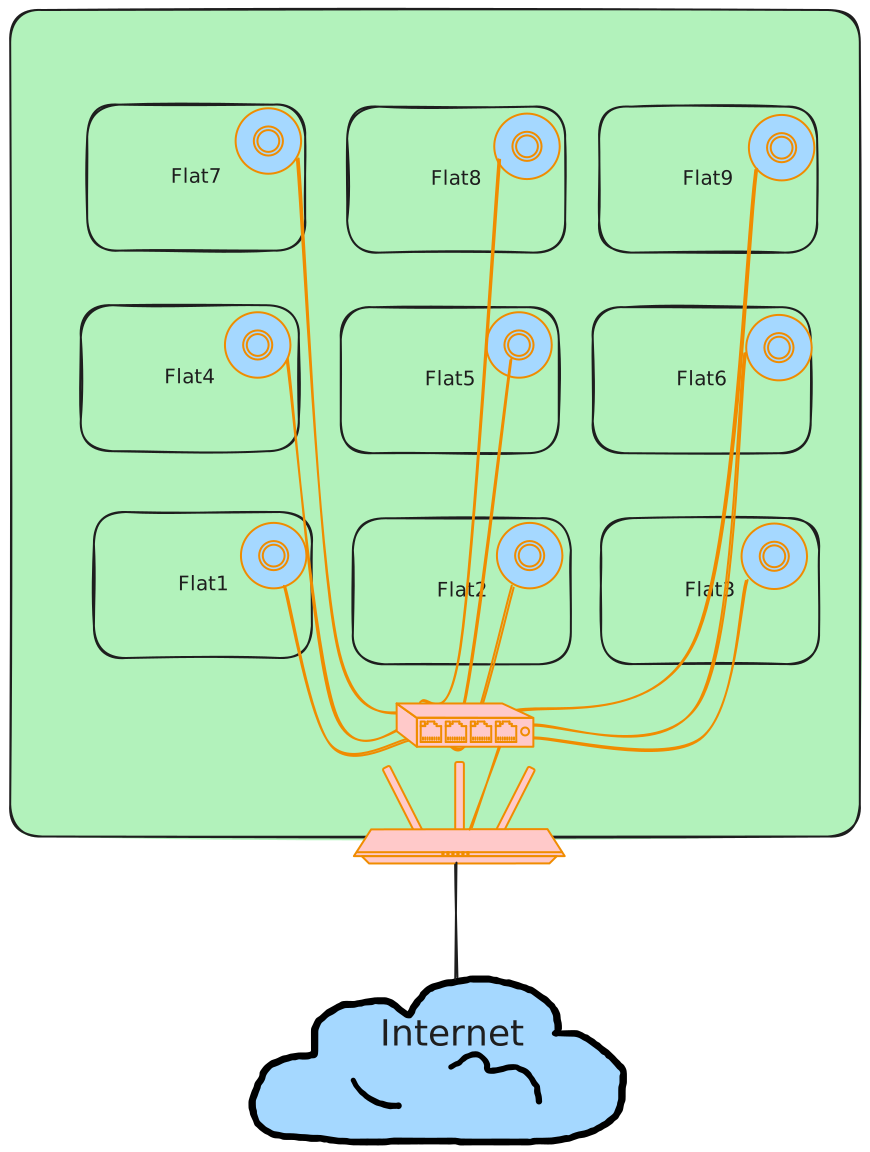
This isn’t ideal for security, especially in a shared living space. The goal is to create more isolated environments:
Building a Better Network
Physical security was covered above, but I need more robust protection because I occasionally work from home and need to safeguard important data. For my setup (which might be similar to yours), here’s what I needed:
- A router that offers flexibility and reliability, while also being compact enough for my apartment
- An access point for WiFi (I’m using the one provided by the landlord)
- Ethernet cables
Here’s how it would look:
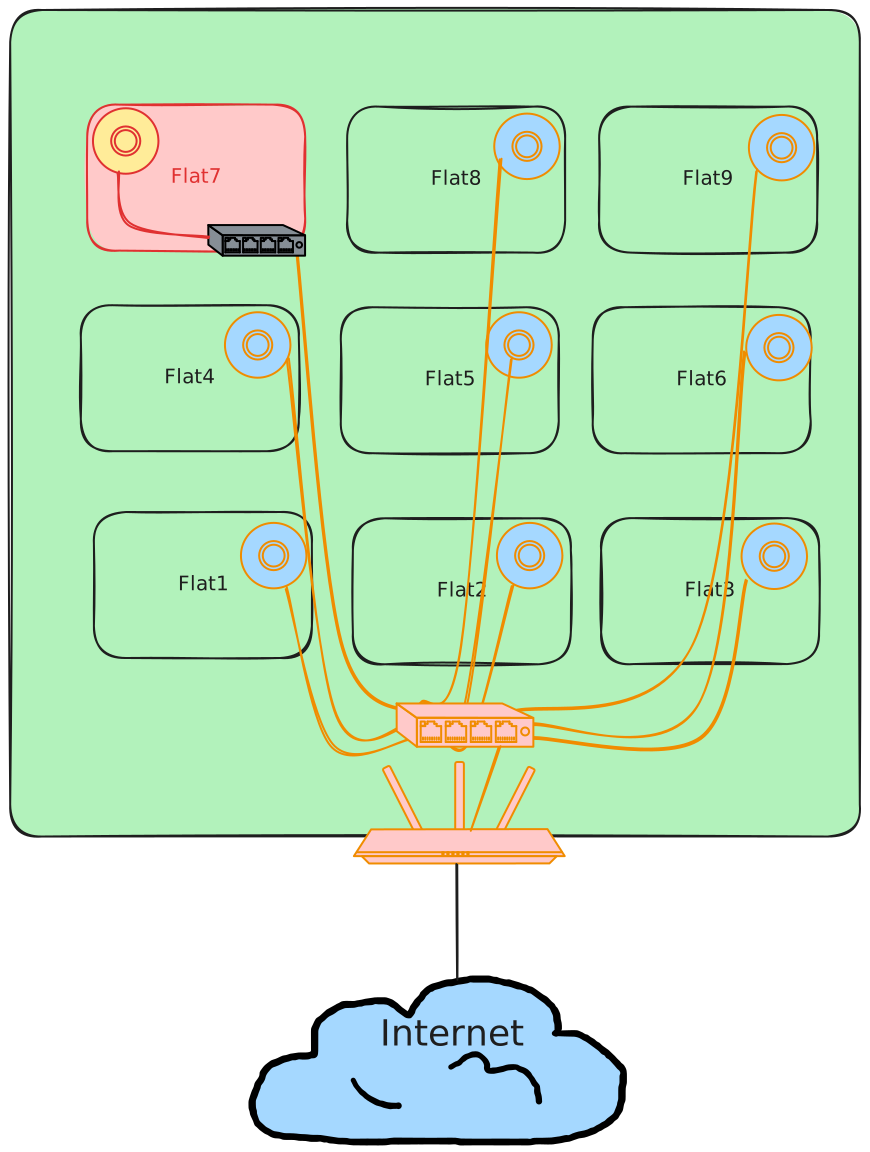
In this new setup, I’ve created a network within the network, giving me full control over what happens in my home network. I’ll cover the configuration of this network in more detail in another page.
A Closer Look at the Components:
The Router: Ubiquiti EdgeRouter X
- The Ubiquiti EdgeRouter runs on EdgeOS, a minimal Debian-based OS that provides extensive configuration options. It’s perfect for both home use and as a personal lab.
- It’s made for enterprise use but doesn’t cost a fortune unlike Cisco equipment.
- It has a Power over Ethernet (PoE) passthrough feature, allowing me to power both the router and the access point with a single cable, reducing cable clutter.
The Access Point
- I’m using the one provided by my landlord. Unless you have specific use cases, most access points will do the job—just ensure you can power them through PoE passthrough if you choose the above router.
Conclusion
This write-up outlines the steps I took to secure my internet connection while balancing practicality with security. By improving both physical and virtual security and redesigning the network setup, I’ve created a safer, more reliable connection for myself and others sharing the space.